In this section, I'll briefly go over information specific to this avatar.
Info
I suggest reading 🌱 Substance Painter Basics and 🌳 Substance Painter Advanced. I will point to it whenever it is relevant.
Anchors
This project has a lot of anchors. It's a good idea to become familiar with them before working on the project. Refer to the 🌳 Substance Painter Advanced#Anchors section for more information.
Lighting and shading layers
Refer to the 🌳 Substance Painter Advanced#New Shading and Lighting setup section for more information.
Emissions
Refer to 🌳 Substance Painter Advanced#Emissions for more information
The red channel of the emission mask will be the rage mode’s glow, the green channel will be used on the head for making the iris glow a bit. Blue and Alpha are unused, so feel free to use them for other things.
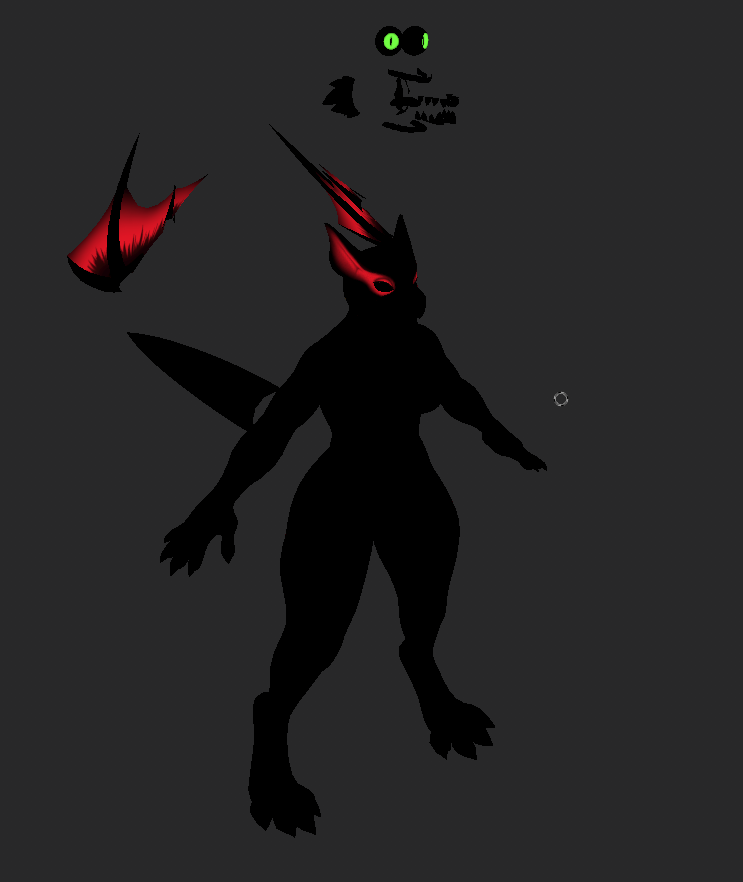
Because alpha is not usually part of the color information for the emission property, in order to use it, you’ll have to use the custom channel User4, which I’ve renamed to “Emissive (Alpha)”.
UDIMs
Refer to the 🌳 Substance Painter Advanced#UDIM Workflow section for more information
The body’s texture resolution is 2k while the head’s will be 1k in Unity.
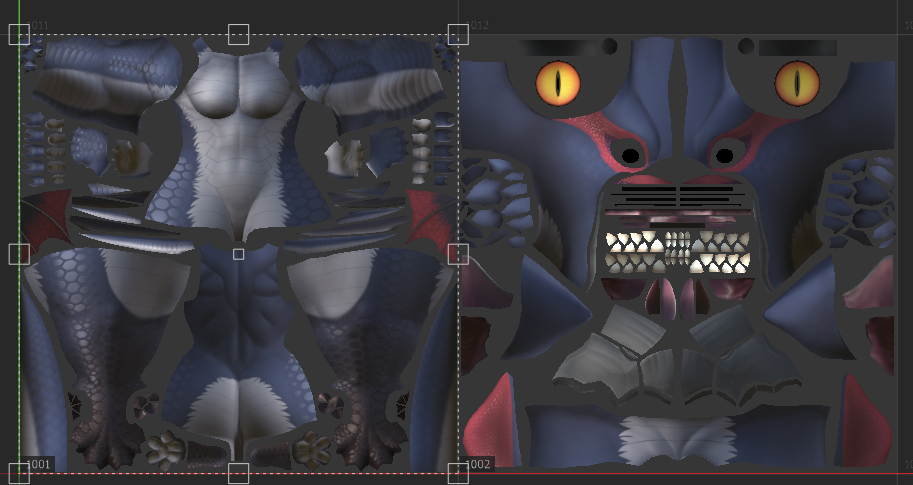
UDIMs assign a number to each UV tile (1001, 1002, 1003, etc.) these numbers will be appended to the texture file on export. On the Body material, 1001 will be for the body, and 1002 will be for the head textures.
Reflection Specular Mask

Much like the Emission Mask, Poiyomi uses another mask to store the metallic, glossiness, reflection and specular values of the model. You might be familiar with Metallics and Glossiness, but Reflection is there to mask out or allow reflections to appear on specific parts of your model, and the specular mask is there to prevent specular from showing up on certain parts of the mesh. Using the default specular or reflection values might not give the intended results, Therefore, I added the specular level channel and used the Glossiness channel for reflections.
Export settings
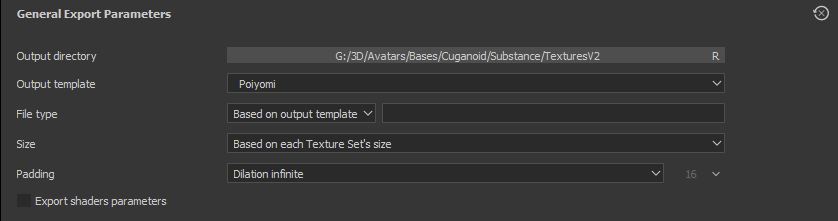
Once you’re happy with your texture work, Use the "Poiyomi (From cache)" output template to export your textures.
Note
Later versions of Substance Painter do not interpret old export settings correctly. If the "From cache" section is missing, You will have to create your own using the information below.
Know that these settings might be different depending on the avatar being worked on. Even the template provided by poiyomi doesn’t include everything that you might need.
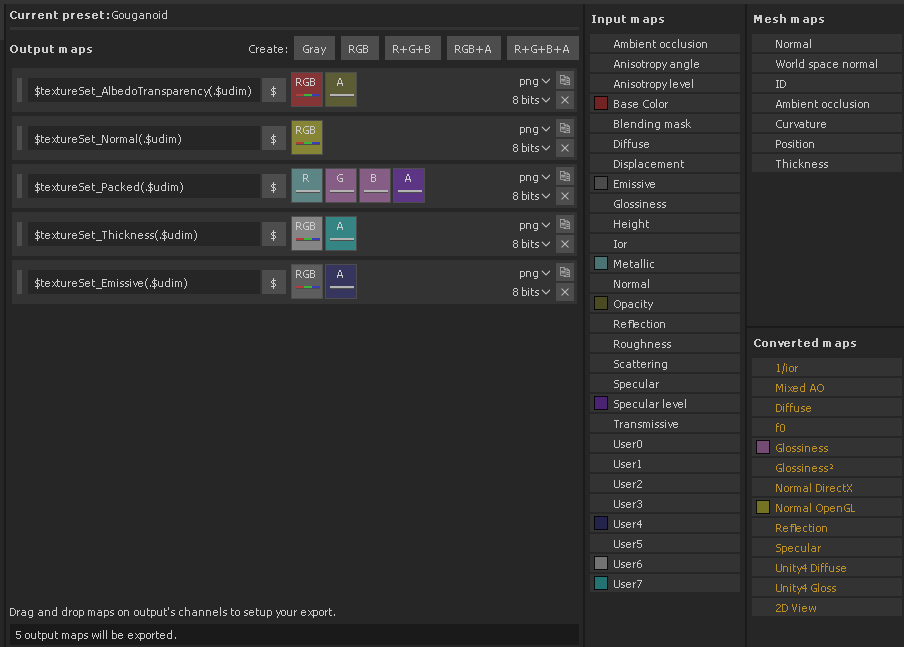
User4= Emissive (Alpha)
User6= Subsurface Scattering Color
User7= Mesh Thickness
When recreating the template, you will have to drag and drop input maps to the correct slots. Substance will then let you select which channel of that map you want to use. If it involves color, you'll select "RGB channels". for everything else, use "gray channel".
you can tell which is which with the small horizontal bar within each slot. That bar will be red, green and blue when "RGB channels" is selected, and gray when "gray channel" is selected.
Success
You can now move on to 🥡 Unity Import Process