ℹ️ Avatar Features
Info
This section talks about the various systems or interactions that are part of the avatar, and includes information about how they function.
Face tracking (V1)
A face tracking version of the model is provided in the Unity file, though it’s hidden by default since it gets selected by default instead of the HSV version. It uses Jerry’s Templates with Unified Expressions, but shouldn’t require any setup, as all the files should already be set up to function by default. If any issues arise, simply download Jerry’s templates. No additional setup should be required.
Due to the sheer amount of parameters needed for face tracking, many of the hue sliders could not fit into this version of the avatar.
Face Tracking (V2)
Each prefab comes with the option for face tracking, but some setup might be required. Integrating face tracking directly into the avatar prefabs caused issues when it comes to wanting to update Jerry’s Templates.
Jerry’s Templates can be downloaded here. They also include a tutorial for setting everything up here. The “Basic” version of the Protonoid should have exactly enough parameter space to allow face tracking using Unified Expressions. If any updates change the amount of parameters used, you can always use VRCFury to compress parameters.
Sword
The sword uses an elaborate system of constraints and grab points using physbones.
You can spawn your sword from the radial menu. When you do, it will be floating somewhere around you. This may be a bit jank depending on the world.
You should be able to grab any handle with your preferred hand. You can use two hands on the main handle, or you can use one hand on either the lower or higher part of the handle.
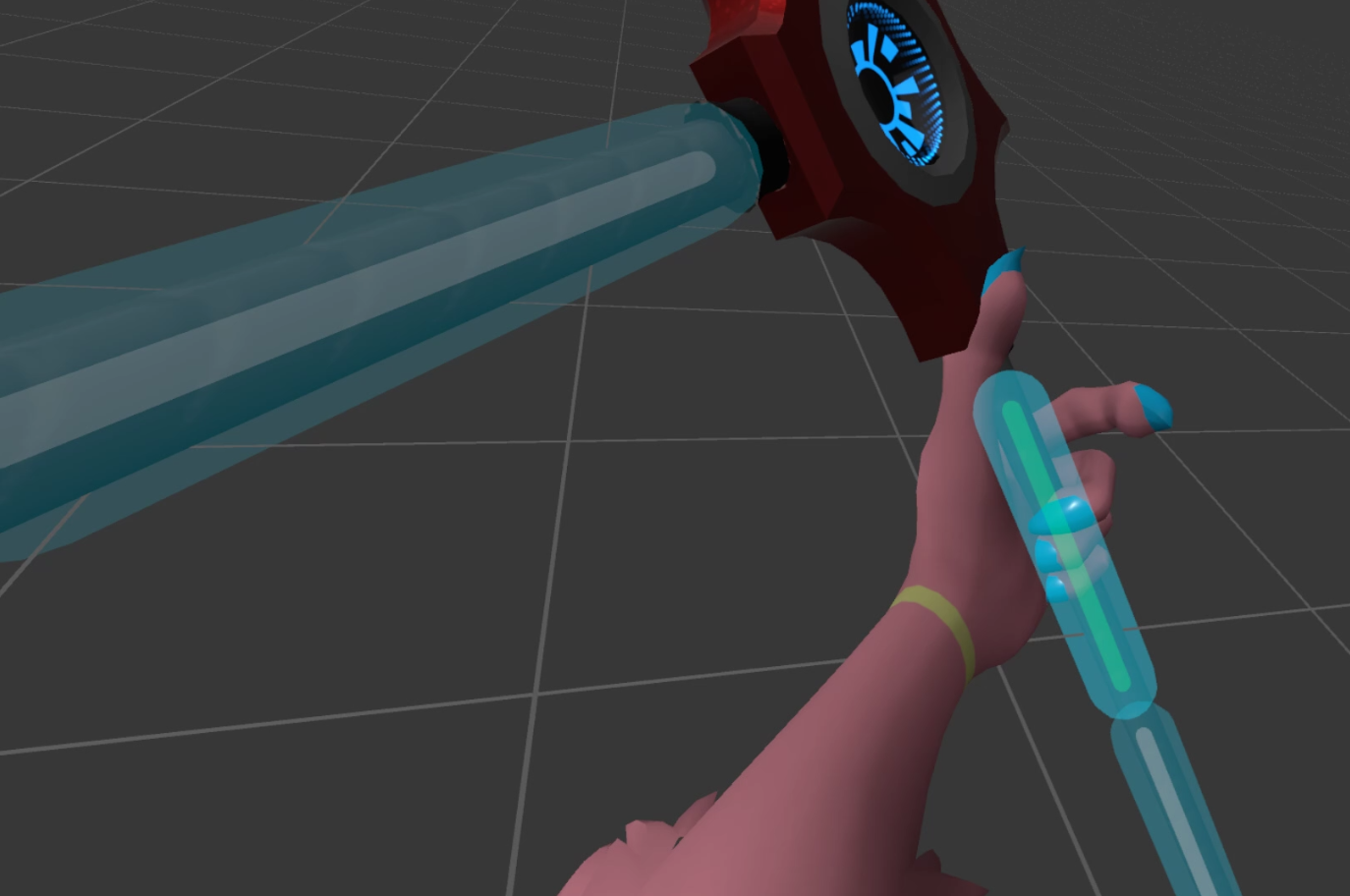
It’s also possible to grab the Tonfa handle, doing so puts the sword in tonfa mode. In tonfa mode, letting go of the handle lets it spin freely. Move your arm in a circle motion to spin it, rotating your wrist won’t have as much of an effect. Grabbing the handle will stop it from spinning and lock it in the closest direction it was facing (forward or back)
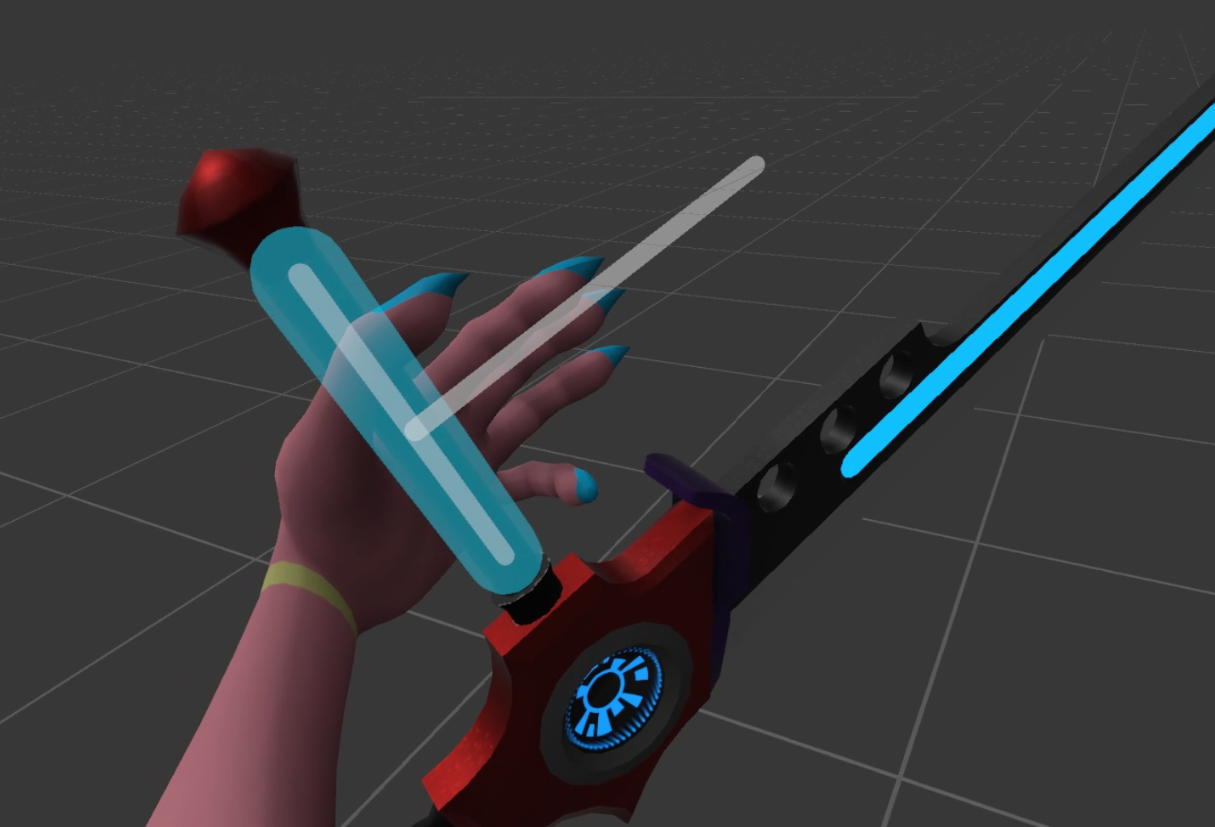
By grabbing both the Tonfa handle and the main sword handle, you can switch between positions.
Internally, this is what the sword position integer uses to tell which position the sword is in.
| Int | State |
|---|---|
| 00 | Hidden |
| 01 | Tonfa L (Left hand grabbing the tonfa handle) |
| 02 | Tonfa Spinning L (Left hand on the tonfa handle but not grabbing) |
| 03 | Tonfa Flipped L (left hand on the tonfa handle and grabbing, but flipped to have the sword in front) |
| 04 | 1HAW_L (one hand above waist (the waist is between the top and bottom handle)) |
| 05 | 2HAW_L (2 handed with the left hand grabbing above the waist) |
| 06 | 1HBW_L (Left hand below waist) |
| 07 | Tonfa R |
| 08 | Tonfa Spinning R |
| 09 | Tonfa Flipped R |
| 10 | 1HAW_R |
| 11 | 2HAW_R |
| 12 | 1HBW_R |
| 13 | Hybrid L (Both the tonfa and regular sword handle are grabbed. Left hand is on the tonfa handle. Used to switch between positions) |
| 14 | Hybrid R |
| 15 | Floating |
Multiple keywords are also tied to a sender on the sword which could be used for certain avatar interactions, such as the danger sensor on the HUD.
HUD
As a challenge, I delved into Amplify Shader to make my first custom shader. With permission, I used the CherubBot’s HUD as a starting point and adapted it for this project. I’m still very much learning, but I’m pretty happy with what I was able to make.
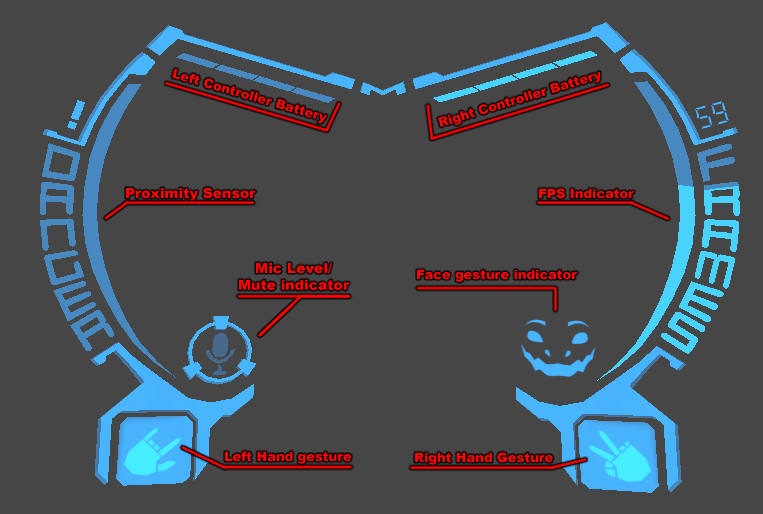
The HUD shows information such as frames per second, proximity to danger (Keywords like electricity, fire, cut are detected, as well as pesky fingers), controller battery life, mic volume level and status, as well as which face gesture and hand gesture is currently displayed. Most of these work by default, but controller battery life requires a bit of extra setup to function.
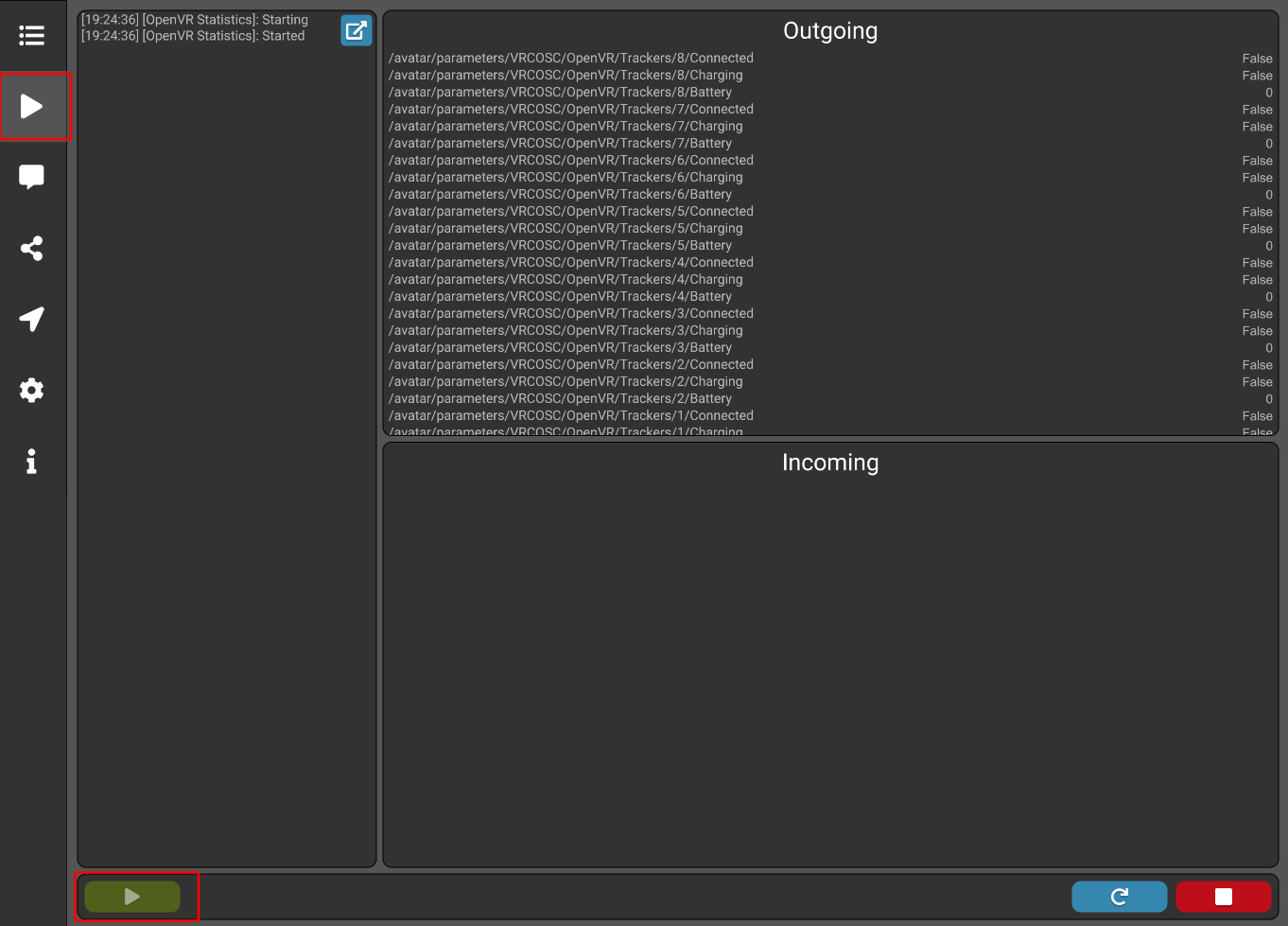
I’m still new to OSC, but for this project, I used VRCOSC in order to get information about battery life. For those using VRCOSC, all you need to do is check “OpenVR Statistics” and press the play button to enable OSC.
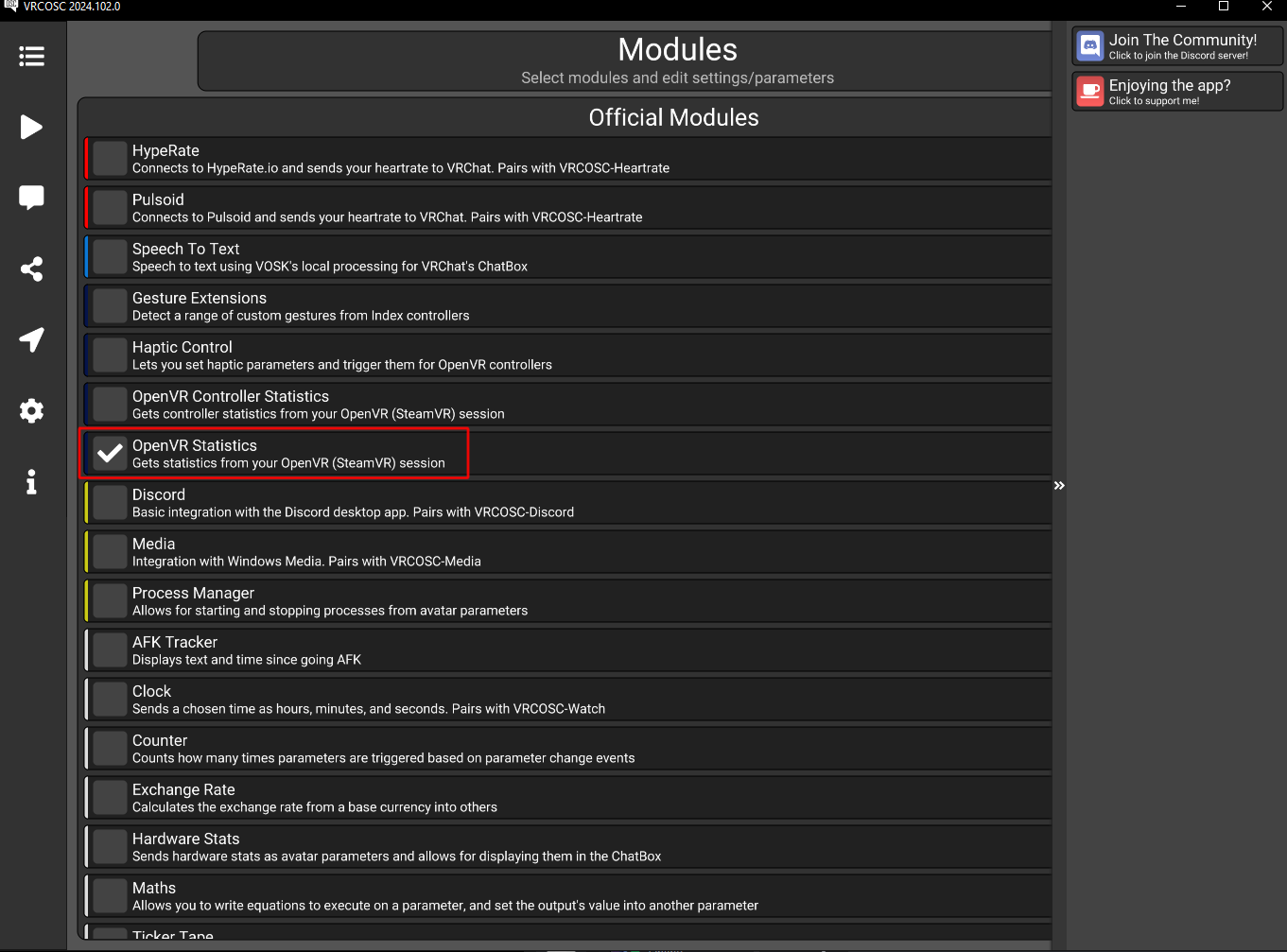
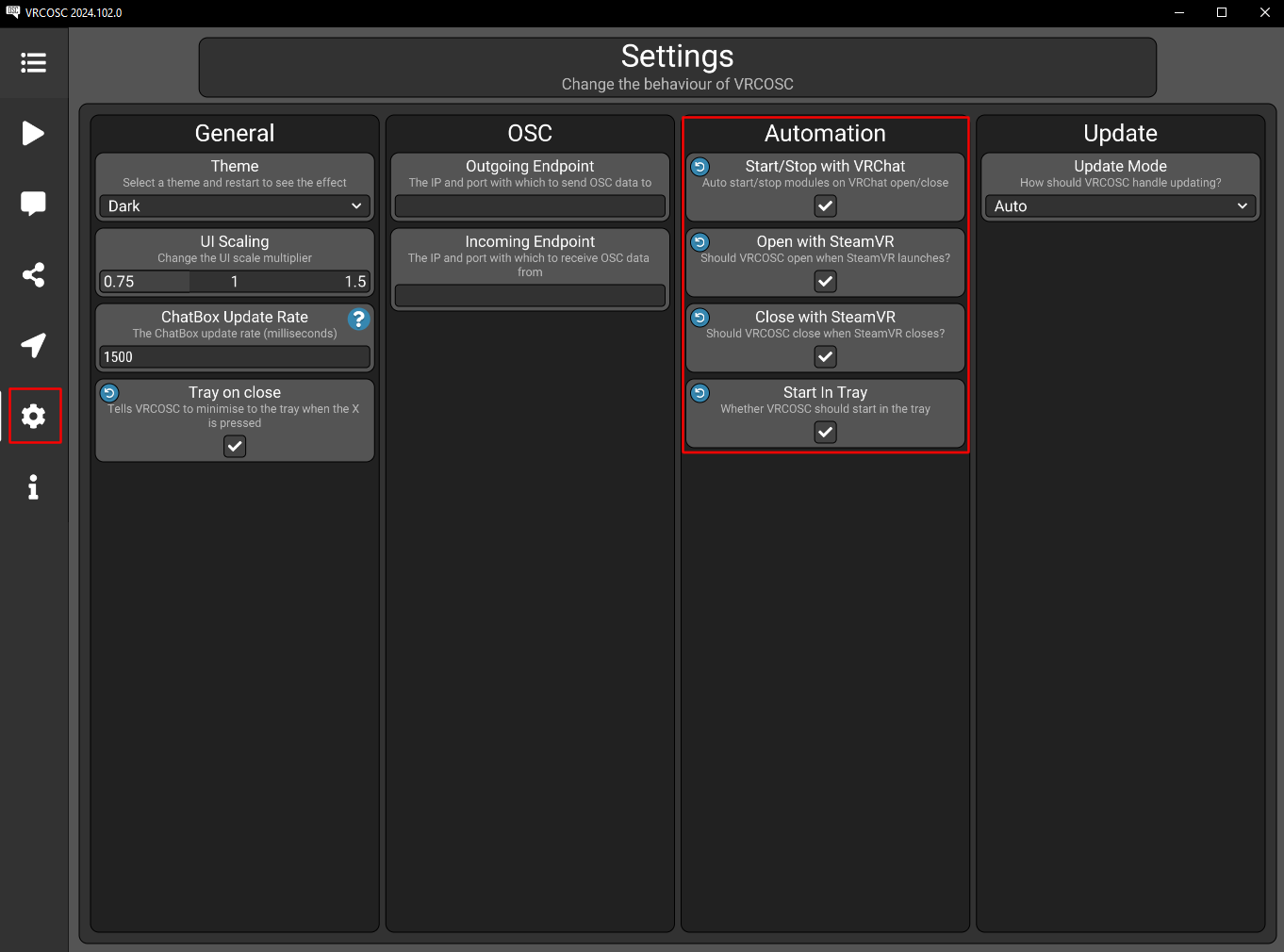
You can also automate this process in the settings.
If it doesn’t work, consider deleting the OSC folder contents in %AppData%/LocalLow/VRChat/VRChat/OSC Also, make sure you’re not running multiple OSC applications.
These two parameters control the battery indicator. If you have your own OSC application and would prefer to use it instead of VRCOSC, you will need to rename these two parameters in the FX layer used by your avatar with the ones provided by your preferred OSC application, assuming they do provide a float for normalized battery percentage data. Also keep in mind that you will most likely need to delete the already existing OSC data for your avatar located in AppData\LocalLow\VRChat\VRChat\OSC, or else this might not work.
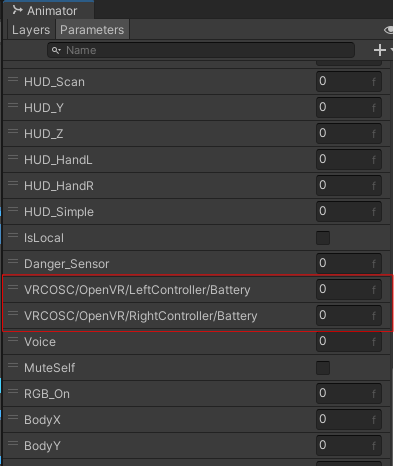
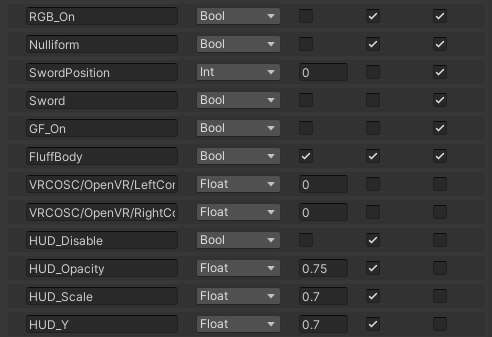
If you’re changing these parameters, remember to also change them in the parameters list associated with the avatar you’re using. (V1) The face tracking version of the avatar is different than the HSV one and uses a different FX layer/parameter list. (V2) also has a different FX layer for Basic, Casual and skull versions of the avatar. These should be in their respective folders inside “Menus and Animators”
Corrective bones
This avatar features multiple corrective bones that automatically help with the deformation of the mesh. Here’s a list of the ones used for this avatar, they should all be marked with an “MCH_” prefix, for “Mechanism”.
- Upper Arm Twist - Prevents Shoulder from collapsing in more extreme rotations
- Lower Arm Twist - Prevents the forearm from only rotating at the elbow.
- Thigh Twist - Helps with leg rotation and alleviates weight painting issues near crotch.
- Knees - Helps keep the knee from shrinking when bending
- Elbows - Helps keep the elbow from shrinking when bending.
- Butt - Helps to give a better shape when lifting the leg.
- Pauldrons - Attempts to prevent clipping issues with pauldrons and shawl. Not exactly perfect.
- Armor twist - Rotates with the forearm to follow the circle shape around the elbow screens.
Constraints are also used for multiple other features, such as
- Sword position
- Sword Pole Vector (For 2 handing)
- World-space anchor
- Gyroform rotation
- HUD position
- HUD Rotation
- Boob Jiggle amount
- Belly jiggle
Corrective blendshapes
In addition to corrective bones, a few corrective blendshapes are used to make things look better under certain conditions.
- Shoulder corrective blendshapes activate for the body when one arm is lifted above the head.
- Knee corrective blendshapes activate when your leg is bent to simulate your calves and thighs squishing.
- When boob bones are scaled up, a blendshape is activated to improve the look of the mesh.
- (V2 only) With the tank top active, physbones moving towards the center of the chest will activate multiple blendshapes (Cor_TT_SquishL, R, and M) and attempt to prevent clipping. This also affects the jacket when used with the tanktop. Another set of blendshapes will also correct the shape as boobs reach a certain size (Cor_TT_Squish_BoobBigL, R and M).
- (V2 Only) A complex set of corrective Blendshapes also fix the look of certain body type combinations (Mostly related to the Chubby Blendshape)
- (V2 Only) Each clothing piece has its own blendshape to prevent clipping
Configurable Joint
This tool is what allows the Gyroform to rotate. Your avatar’s velocity drives the blendtree for the rolling, and the angle limit for the configurable joint’s Z and Y axis gets reduced after enough time is spent moving at max velocity in a certain direction, which prevents it from rotating in other directions than forward. The Gyroform then follows the direction in which you’re going using another blendtree that gets its layer weight set to 1, which rotates the ball on the Y axis and leaves a particle trail behind.
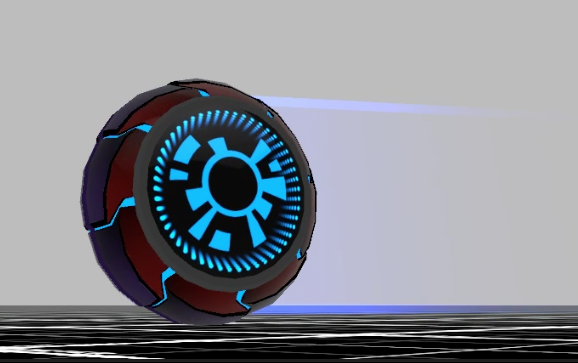
The trail is a bit janky since it can only use the Z direction to determine which angle to be in, and that easily breaks when going up or down, since by default it’s meant to be horizontal and not vertical.