This section touches on the Poiyomi features used and how to modify them.
Metallics and Specular
If you created your own export template in Substance Painter and used it in the previous section, you may need to click the three dots in the top right and click "reset", then check the "Reflections & Specular" checkmark so that it's enabled and right click to the left of "Packed maps" and click reset on this one also. Then, drag and drop the maskmap texture you exported. Bring the metallic slider up to 1.
The difference between this texture and the old texture is that the old texture would only have specular show up on the brighter areas, which was not entirely intended.
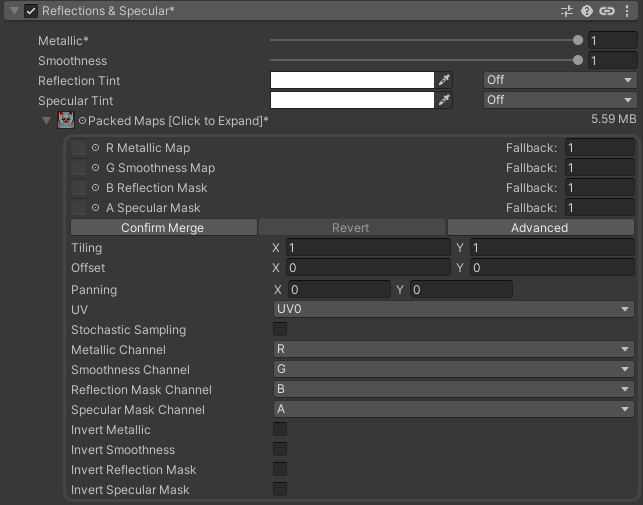
Reflections & Specular (old)
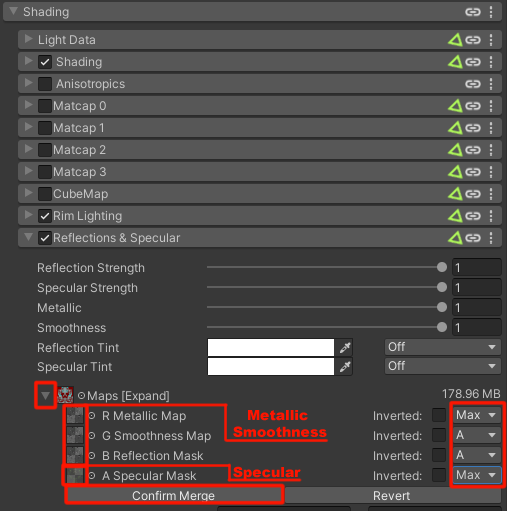
Assuming you exported your own MetallicSmoothness and Specular maps, here’s how to set them up. Poiyomi uses a very specific setup. Put the MetallicSmoothness map in the first 3 slots. The first will use the black and white value (max), which determines how metallic something is. The second will use the Alpha value (A), or transparency, to determine how smooth something looks. The “Reflection” map is how much the cubemap will appear in smooth parts. It makes sense to me to use the same value as Roughness for it. Once you’re done, click “confirm merge” to merge all the maps into one, which will help bring the file size of the textures down drastically. Handy!
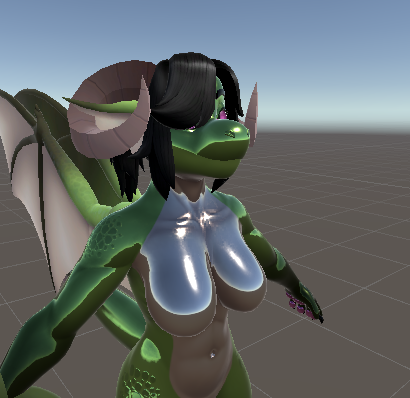
If you don’t click “confirm merge”, the maps will go away when locking and your character will look entirely metallic, like shown above.
Emissions
Refer to 🌳 Substance Painter Advanced#Emissions for more info.
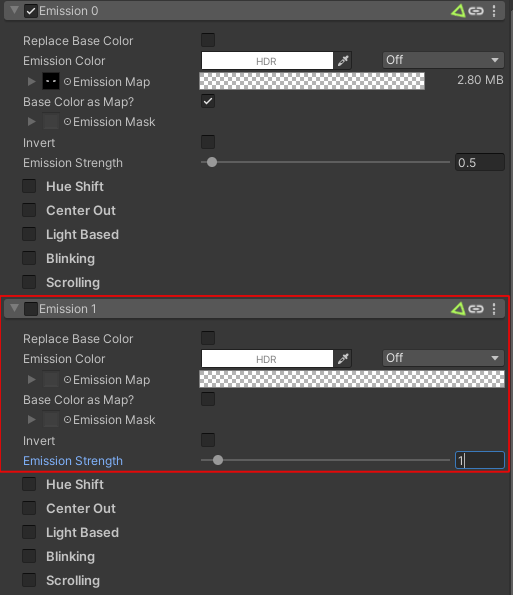
If you have any custom Emission maps, I would suggest putting them in the “Emission 1” slot. Don’t forget to enable emission 1 if you do!
The “Emission 0” slot is used specifically for the eyes, as it looks much better when they have a bit of Emission on them.
Decals
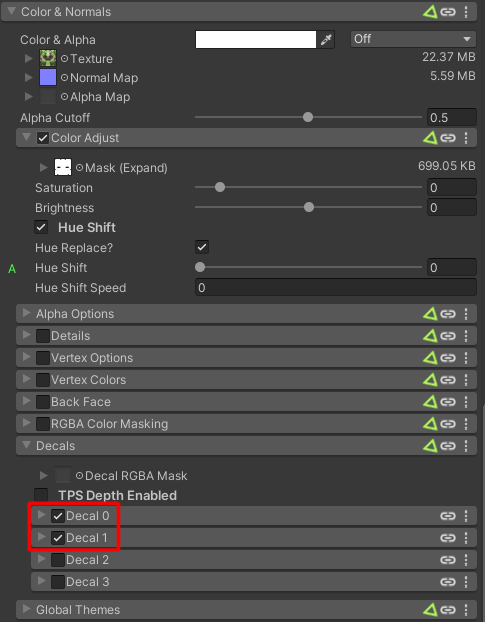
refer to 📚 Understanding Poiyomi#Decals Another thing that might be wrong is the eye color. In order for the Eyes Hue slider to work, it replaces the eye color using decals. Go to the Body material and look for Color & Normals>Decals and uncheck both.
And that’s about it! You should be able to replace the maps for the assorted material and the hair. Your Drakonoid should then have your own custom colors and flair!
Success
If you want a more in-depth explanation of the different avatar features used, head to ℹ️ Avatar Features